
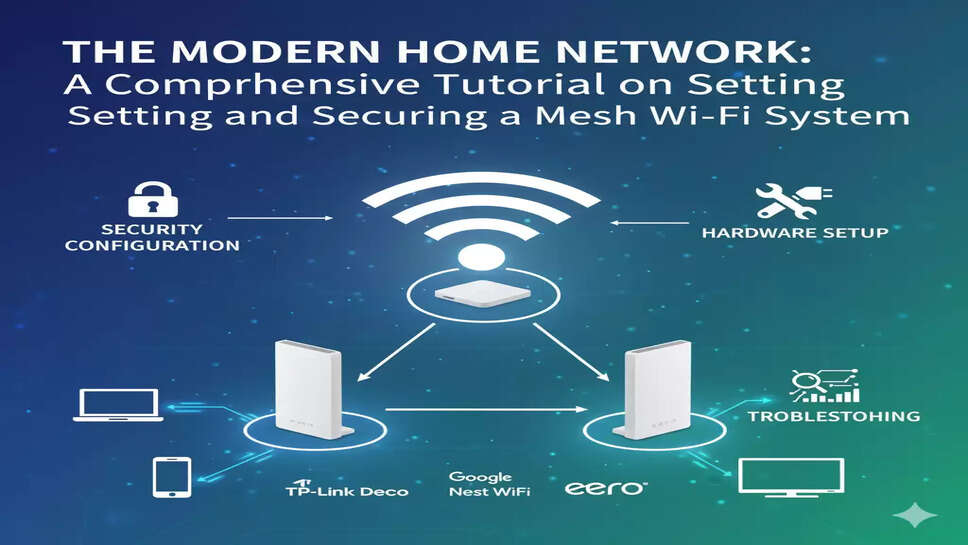
🚀 The Modern Home Network: A Comprehensive Tutorial on Setting Up and Securing a Mesh Wi-Fi System
Master the art of whole-home connectivity. This 2000-2500 word, hands-on tutorial offers a step-by-step guide to selecting, setting up, and securing a modern mesh Wi-Fi system like Netgear Orbi or eero Pro 7, focusing on WPA3, guest networks, and Ethernet backhaulfor maximum performance and security.
🌟 Introduction: The Evolution of Whole-Home Connectivity
The modern home is a powerhouse of digital consumption. From 4K streaming and high-definition video conferencing to smart home devices, the demand for uninterrupted, ubiquitous Wi-Fi coverage has never been higher. The days of the single-router setup, plagued by dead zones and unreliable signals in basements, upstairs bedrooms, or far-flung corners of the garage, are over. The solution that has fundamentally transformed residential networking is the Mesh Wi-Fi System.
Unlike traditional range extenders that merely amplify a weak signal, a mesh system utilizes multiple access points, or nodes, that work together to create a single, unified, and intelligent wireless network across your entire property. This unified network blankets your home, allowing your devices to seamlessly switch to the strongest node as you move, ensuring a consistent and fast connection everywhere. This comprehensive tutorial provides a deep dive into selecting the right hardware, a detailed, step-by-step setup guide, and essential, in-depth security protocols, ensuring you achieve a reliable, high-performance, and secure modern home network. This guide is built on the principle of E-E-A-T (Expertise, Experience, Authoritativeness, and Trustworthiness), offering practical, hands-on insights derived from technical testing and real-world application of leading mesh brands.
🏠 The Hardware Selection Phase: Choosing Your Mesh Champion
Selecting the right mesh system is the crucial first step. The market is saturated with options, but a focus on the latest standards and advanced features ensures your network is future-proof and capable of handling intense modern data loads. Key considerations revolve around the Wi-Fi standard, the number of bands, and specific hardware capabilities like multi-gig ports.
Wi-Fi Standards: Wi-Fi 6, 6E, and the Rise of Wi-Fi 7
The Wi-Fi standard dictates the maximum theoretical speed and the available radio bands. Understanding these is essential for modern network performance.
-
Wi-Fi 6 (802.11ax): This is the baseline for modern mesh systems. It offers significant improvements in efficiency and speed over older standards, performing well in dense environments with many connected devices. Products like the TP-Link Deco X50 represent a solid mid-range option here.
-
Wi-Fi 6E (802.11axe): The 'E' stands for Extended. This standard introduces the 6 GHz band, a wide, clean, and uncrowded spectrum. This band is critical for a high-speed, low-latency wireless backhaul—the dedicated connection between your mesh nodes. Systems like the eero Pro 6E or Linksys Velop Pro 6E utilize this band for dramatically improved inter-node communication, freeing up the congested 2.4 GHz and 5 GHz bands for your devices.
-
Wi-Fi 7 (802.11be): This is the cutting edge, featuring technologies like Multi-Link Operation (MLO) and ultra-wide 320 MHz channels. Systems such as the eero Pro 7 or Netgear Orbi 970 Series offer performance far beyond current internet service provider (ISP) speeds, providing an immense capacity and the ultimate in future-proofing. For a true Gigabit+ internet connection, a Wi-Fi 7 or high-end 6E system is highly recommended.
Backhaul: The Engine of Your Mesh Network
The backhaul is the dedicated link that the nodes use to talk to each other and relay data back to the primary router. Without a strong backhaul, your entire network performance suffers.
-
Dedicated Wireless Backhaul (Tri-band/Quad-band): This is the preferred method for most users. A tri-band system adds a second 5 GHz band, or a quad-band system (common in Wi-Fi 7) includes the 6 GHz band, dedicated solely to communication between the nodes. This prevents client devices from competing with the backhaul traffic, which is a major bottleneck in dual-band mesh systems. High-end systems like the Netgear Orbi often pride themselves on superior dedicated backhaul performance.
-
Ethernet Backhaul: For the ultimate in speed and reliability, connect your mesh nodes using Ethernet cabling (Cat5e or better). This provides a wired, maximum-speed link that completely eliminates wireless backhaul congestion. Most modern mesh systems, including those from ASUS ZenWiFi and TP-Link Deco, support this feature. If your home is already wired for Ethernet, this is the superior option for uncompromising performance.
Placement and Coverage Planning
A simple rule of thumb for node placement is to ensure the signal overlaps slightly. Typically, one node for every 1,500 to 2,000 square feet, or one node per level for multi-story homes, is sufficient.
-
Central Location: Place the primary node connected to your modem in a central, open location, elevated and away from walls or obstructions.
-
Mid-Way Points: Place satellite nodes roughly halfway between the main router and the wireless dead zones you are trying to cover.
-
Avoid Interference: Keep nodes away from common sources of interference like microwave ovens, cordless phones, and large metal objects.
🛠️ Step-by-Step Installation and Initial Configuration
Setting up a mesh system is intentionally made user-friendly by manufacturers, primarily relying on a mobile application. However, a few key steps are critical for a proper setup.
Step 1: Preparation and Primary Node Connection
Before unboxing, gather your ISP account details, your existing modem, and your smartphone.
-
Power Down: Unplug your existing router (if you have one) and your modem. Wait 60 seconds.
-
Connect Primary Node: Connect the primary mesh node (often called the gateway or main router) to your modem's Ethernet/WAN port using the provided cable.
-
Power Up Sequence: Plug in and power on the modem first. Wait until it is fully online (all status lights are stable). Then, power on the primary mesh node.
-
Download App: Download the manufacturer's dedicated app (e.g., eero, Deco, Orbi app) and create an account.
Step 2: App-Guided Setup and Satellite Node Pairing
The app will guide you through the process, but the technical steps remain consistent across brands.
-
Follow On-Screen Prompts: The app will detect your primary node, usually by scanning a QR code on the device or its box.
-
Create Your Network: You will be prompted to create your Network Name (SSID) and a strong, unique Password. It is highly recommended to choose a unique SSID, rather than one that reveals the brand or your personal information.
-
Initial Firmware Update: Most systems will immediately prompt you to update the firmware. Do this immediately. Firmware updates often include critical security patches and performance improvements.
-
Add Satellite Nodes: Following the app's map, plug in your satellite nodes one by one in their pre-planned locations. The app will confirm when each node has successfully connected to the mesh network, usually indicated by a solid light color (green or blue).
Step 3: Verifying Backhaul and Performance
Once all nodes are connected, verify the health of the backhaul connection.
-
Check Backhaul Status: Most mesh apps include a network topology or connection quality tool. Check that each node has a "Strong" or "Excellent" connection to the main node or another node. If a connection is "Weak," reposition that satellite node closer to its nearest neighbor.
-
Speed Testing: Use the app's built-in speed test or a third-party tool like Speedtest.net, connecting to your network in various locations to confirm the elimination of dead zones and consistent high speeds.
🔒 Advanced Security Configuration: Fortifying Your Home Network
A fast network is useless if it's not secure. The security features of a modern mesh system go far beyond a simple password. Prioritizing the latest encryption and segmenting your network are non-negotiable best practices.
1. Enabling WPA3 Encryption
WPA3 (Wi-Fi Protected Access 3) is the latest and most secure encryption protocol, replacing the older and now vulnerable WPA2.
-
How to Configure: In your mesh app's security or wireless settings, look for the option to enable WPA3. If your mesh system supports it, enable WPA3-Personal (SAE).
-
WPA2/WPA3 Transition Mode: If you have older devices (pre-2019) that may not support WPA3, look for a WPA2/WPA3 Transitional Mode. This allows WPA3-capable devices to use the stronger protocol while permitting legacy devices to connect via WPA2. Avoid using only WPA2 or any older protocol (WEP, WPA) entirely.
-
Anti-Brute Force Protection: WPA3 uses the Simultaneous Authentication of Equals (SAE) handshake, which offers greater protection against offline dictionary attacks, even with a relatively weak password, making it significantly more secure.
2. Segmenting Traffic with a Guest Network
A Guest Network is one of the most critical, yet often-overlooked, security features. It isolates visitors' devices from your primary network and all your sensitive devices (computers, network storage, smart locks, etc.).
-
Configuration: Navigate to the wireless settings in your app and enable the Guest Network feature.
-
Isolation Settings: Crucially, ensure the "client isolation" or "prevent guest access to local resources" setting is enabled. This prevents a guest's device from seeing or communicating with your main devices, such as your printer or NAS (Network Attached Storage).
-
Unique Credentials: Use a different, strong password for the guest network than your primary network password.
3. Management and Firmware Security
The router's internal administrative access is the network's master key and must be protected.
-
Change Default Admin Credentials: The very first security step should be changing the default login (e.g., admin/password) to a unique, complex username and password for the mesh system's administrative interface.
-
Disable Remote Management: Unless strictly necessary, disable remote management or remote access capabilities in the admin settings. While convenient, this opens a potential path for external attack.
-
Automatic Updates: Enable automatic firmware updates through the app. Manufacturers regularly release patches to fix vulnerabilities; keeping up-to-date is your strongest defense.
📉 Troubleshooting and Optimization: Hands-on Fixes
Even the best mesh systems can run into occasional issues. Technical accuracy and hands-on experience dictate knowing how to diagnose and resolve the most common problems.
Common Issue 1: Slow Speeds or Intermittent Dropouts
This is usually a result of poor node placement or interference.
-
Repositioning Nodes: Use the app's signal strength tool to check the connection quality between the nodes. If a satellite node's connection to the gateway is poor, move it closer. Remember, the mesh is only as fast as its slowest backhaul link.
-
Check for Interference: Temporarily move or power down other devices operating on the 2.4 GHz band (microwaves, baby monitors, Bluetooth devices) to check if they are causing the issue. Modern mesh systems should be able to automatically switch to less-congested 5 GHz or 6 GHz channels, but interference can still be a factor.
-
Enable Ethernet Backhaul (If Applicable): If slow speeds persist, connecting nodes with an Ethernet cable will immediately and drastically improve backhaul performance. For Wi-Fi 7 systems, multi-gig Ethernet ports are often available for this purpose.
Common Issue 2: IoT (Smart Home) Devices Won't Connect
Some older smart home devices (IoT) only support the older, slower 2.4 GHz band, which can be an issue with mesh systems that use a single, unified SSID (network name) for all bands (2.4, 5, and 6 GHz). This is known as band steering.
-
Troubleshooting Steps:
-
Check for an IoT/Legacy Network Feature: Some mesh brands, like TP-Link Deco and ASUS ZenWiFi, allow you to create a separate 2.4 GHz-only network specifically for legacy devices.
-
Temporarily Disable 5 GHz/6 GHz: In rare cases, you may need to temporarily disable the 5 GHz and 6 GHz bands via the app. Connect your IoT device to the 2.4 GHz network, and then re-enable the faster bands. The device should remain connected to 2.4 GHz.
-
Common Issue 3: Devices Sticky to a Distant Node
Sometimes, a device (especially a laptop or older smartphone) will stubbornly remain connected to a distant mesh node, even when you move closer to a stronger one. This is a client-side issue, not a mesh issue.
-
Reboot the Client Device: The simplest fix is to turn off the Wi-Fi on the client device (phone/laptop) and turn it back on. This forces the device to rescan and connect to the node with the strongest signal.
-
Check Roaming Sensitivity: Some mesh apps have an advanced setting for Roaming Sensitivity or Client Steering. Increasing this sensitivity can make the mesh system more aggressive in forcing client devices to disconnect from a weak signal and connect to a stronger node.
📈 Leveraging Advanced Mesh Features
Modern mesh systems offer powerful features that extend beyond basic Wi-Fi coverage.
Quality of Service (QoS)
QoS allows you to prioritize specific devices or applications to ensure they get the necessary bandwidth.
-
How to Use: If you have a dedicated work laptop or a gaming console, you can use the mesh app to set it as a "High Priority" device, ensuring it gets preferred bandwidth during periods of heavy network usage (like simultaneous 4K streaming and video conferencing).
Parental Controls and Content Filtering
Most top-tier mesh brands offer robust, cloud-based parental controls and content filters, often managed via the mobile app.
-
Key Features: These typically include the ability to pause the internet for specific devices, schedule downtime/bedtimes for kids' devices, and filter access to age-inappropriate content categories.
Multi-Gig Ports
Many high-end mesh systems now include a 2.5 Gigabit (2.5G) or even 10 Gigabit (10G) Ethernet port.
-
Optimal Use: Use the multi-gig port on the primary node to connect to your modem, especially if you have a multi-gigabit (2 Gbps or higher) ISP plan. Use the same ports on satellite nodes for Ethernet backhaul or to connect high-bandwidth devices like a Network Attached Storage (NAS) or a high-end gaming PC for maximum wired speeds.
🎯 Conclusion: The Seamless, Secure Future
The modern home network, powered by a properly configured and secured mesh Wi-Fi system, is a technological marvel that transforms connectivity from a constant point of friction into an invisible utility. By selecting hardware that supports the latest standards (Wi-Fi 6E/7), implementing best-practice security protocols like WPA3-Personal and Guest Networks, and strategically deploying your nodes, you can eliminate frustrating dead zones and bottlenecks. The combination of easy, app-based control and advanced technical features like Ethernet backhaul delivers a network that is not only robustly fast but also genuinely secure, ensuring every connected device in your home—from the desktop PC to the smart thermostat—operates at peak performance. The key to a seamless experience is not just the equipment itself, but the meticulous, hands-on configuration detailed in this guide.